Learning path
Notes & dictation
Last updated: November 2026
Not everything is a meeting. Something comes to mind while you cook, or an email has to go out. For both you hold a key, talk and let go. It works from any app.
Quick note
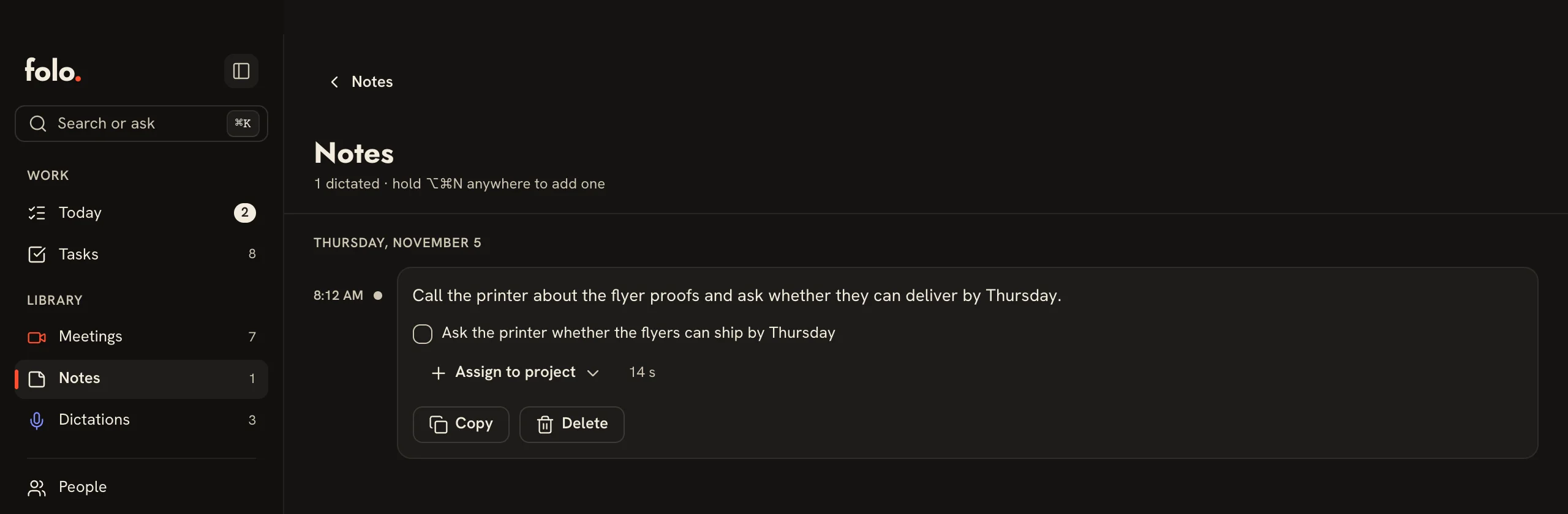
Hold ⌥⌘N (Windows and Linux: Ctrl + Alt + N), say what’s on your mind and let go. The note then sits under “Notes”. There’s no summary here, the text is the note. A very short press is discarded.
For longer thoughts, add ⌃: ⌃⌥⌘N (Windows and Linux: Ctrl + Alt + Shift + N). The note then runs hands-free until you press the shortcut again or click stop.
Anything to do, folo pulls out as a task if an AI is set up (see Summaries & templates). Start with “Task:” and the note becomes a task right away, even without an AI.
Dictation into any app
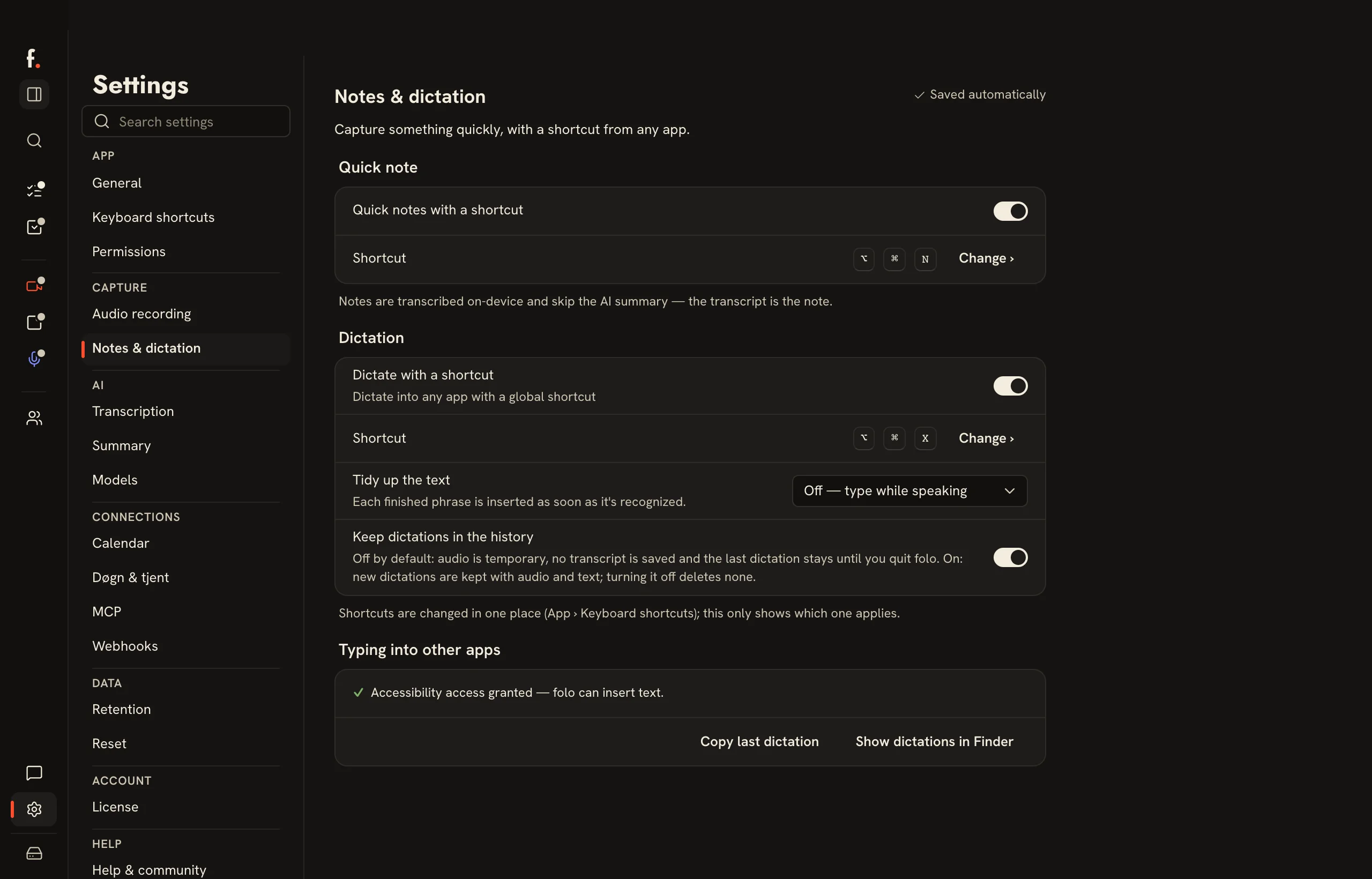
You switch dictation on once: at first launch, or with “Dictate with a shortcut” under “Settings › Notes & dictation”. Then hold ⌥⌘X (Windows and Linux: Ctrl + Alt + X), talk and let go. The text lands where your cursor blinks, in an email, in Slack or in your code. If typing it in doesn’t work, it’s waiting on your clipboard.
Hands-free works here too: ⌃⌥⌘X (Windows and Linux: Ctrl + Alt + Shift + X). folo then types while you’re still talking, until you press again.
On the Mac, folo needs Accessibility access once for this.
How much should folo tidy up?
“Tidy up the text” has four levels:
- “Off”. folo inserts each phrase as soon as it’s recognized.
- “Light”. Punctuation is right, filler words are gone.
- “Formatted”. Paragraphs and lists on top.
- “Own instruction”. Your rule applies to every dictation, say “Write in English”.
From “Light” up, your summary model polishes the text after you let go. If that takes too long, folo inserts the raw text. If a cloud service is selected under “Summary”, the dictated text goes there.
Finding dictations again
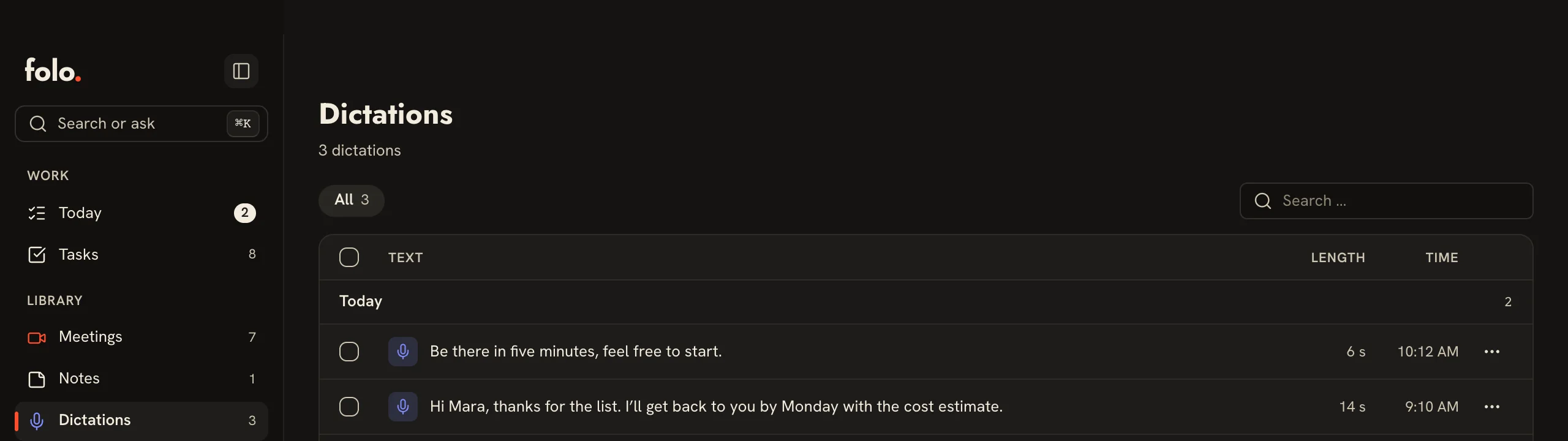
By default folo doesn’t keep dictations. You can copy the last one until you quit folo. Switch on “Keep dictations in the history” and new dictations stay under “Dictations”, with text and audio. How long is up to you, under “Settings › Retention”.
Changing shortcuts
You change every shortcut in one place: “Settings › Keyboard shortcuts”. Hold means speak while pressed. The hands-free variant is the same shortcut plus ⌃ (Windows and Linux: plus Shift). If your shortcut already contains that key, there’s no hands-free variant.
That’s also where the task panel shortcut lives (⇧⌘A, Windows and Linux: Ctrl + Shift + A), plus one for the panel at the icon. The panel shortcut starts out empty; set it yourself if you want one.
Linux: On Wayland your desktop assigns the shortcuts and asks once in its own dialog. If the session offers no global shortcuts, folo shows you a command. Bind it to a key yourself in GNOME or KDE.